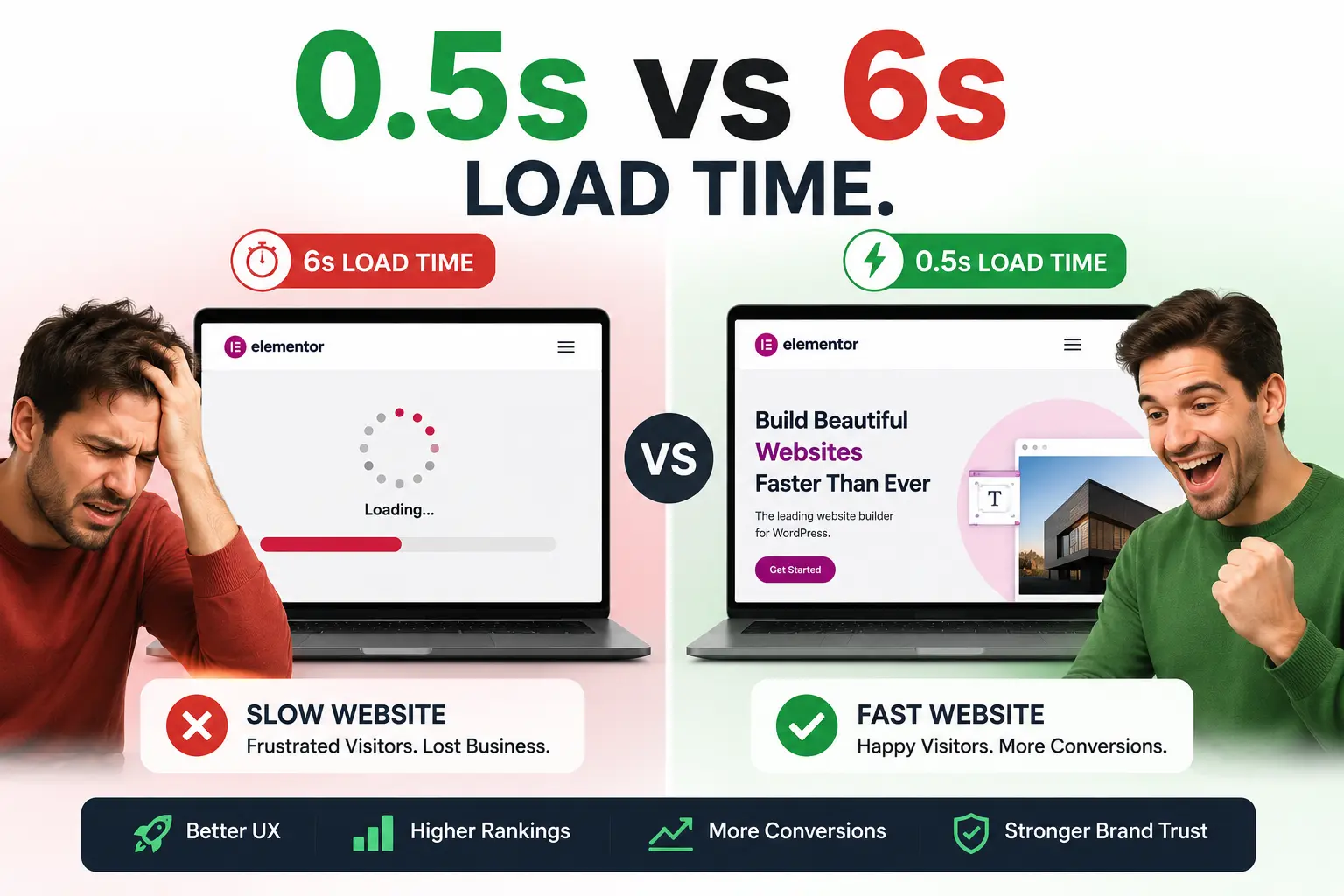
Let me be straight with you, a beautiful Elementor website that loads in 6 seconds is essentially invisible.
Google buries slow sites. Visitors abandon them. And all that hard work you put into designing your pages? Gone before anyone even sees it.
Here’s the uncomfortable truth: Elementor is incredibly powerful, but it comes with baggage. Every widget, every animation, every plugin adds weight. And if you’re not actively managing that weight, your site slowly turns into a digital swamp.
The good news? Speeding up an Elementor website is absolutely doable even without a developer. In this guide, you’ll get 15 battle-tested techniques that genuinely move the needle on page speed, Core Web Vitals scores, and real-world user experience.
Let’s get into it.
Why Elementor Sites Often Run Slow (And Why It Matters)
Before fixing something, it helps to understand why it breaks.
Elementor generates quite a bit of extra CSS and JavaScript compared to hand-coded sites. Every widget you drop on a page, a button, a slider, or a contact form loads its own assets. Add a few third-party plugins on top, and your page is suddenly making 80+ HTTP requests just to render.
Then there’s the hosting factor. A lot of website owners build a gorgeous Elementor site and park it on cheap shared hosting. That’s like buying a sports car and running it on cooking oil.
Why speed actually matters in 2026:
- Google officially uses Core Web Vitals (LCP, INP, CLS) as ranking signals
- A 1-second delay in load time can reduce conversions by up to 7%
- Mobile users, who now make up 60%+ of web traffic, have even less patience than desktop users
- Only 25–35% of Elementor sites currently pass Core Web Vitals, meaning the majority are silently losing rankings
The upside: that gap is your opportunity. Fix your speed, and you leapfrog most of your competitors without writing a single piece of new content.
How to Test Your Elementor Website Speed First
Don’t start optimizing blindly. Run your site through these three tools and note your baseline scores:
- Google PageSpeed Insights (pagespeed.web.dev): The most important one since it uses real Chrome user data
- GTmetrix: Gives you a waterfall chart showing exactly which files are slowing you down
- WebPageTest: Great for testing from different geographic locations
Write down your LCP (Largest Contentful Paint), TBT (Total Blocking Time), and CLS (Cumulative Layout Shift) scores. These are your targets to beat.
15 Proven Ways to Speed Up Your Elementor Website
1. Switch to a Lightweight Theme
This is the single biggest performance decision you’ll make, and most people get it wrong.
Heavy themes like Divi or Avada can add 200–400KB of CSS before a single Elementor widget loads. Instead, switch to a theme built specifically to work with Elementor without adding bulk.
Best lightweight themes for Elementor:
- Hello Elementor — Built by the Elementor team. Zero styling overhead. The fastest option.
- Astra — Extremely lightweight (~50KB), highly compatible
- GeneratePress — Developer favourite, clean code, fast by default
- OceanWP — Good balance of features and speed
If you’re currently on a heavy theme, migrating to Hello Elementor alone can shave 1–2 seconds off your load time.
2. Enable Elementor’s Built-In Performance Features
Elementor Pro and even the free version have performance settings most users never touch. Open your WordPress dashboard → Elementor → Settings → Performance.
Turn on:
- Load Font Awesome only when used — This alone cuts ~75KB from most pages
- Improved Asset Loading — Elementor’s container-based loading that only loads widgets actually used on a page
- Inline Font Icons — Replaces icon font files with inline SVG
- Google Fonts display: swap — Prevents invisible text during font load
These are essentially free speed wins sitting in a tab you probably haven’t opened.
3. Use Elementor Containers (Flex) Instead of Sections
One often-overlooked way to speed up your Elementor website is switching from the old Sections/Columns structure to Flexbox Containers because you’re carrying legacy code weight if you haven’t already.
Elementor’s Flexbox Container system (introduced in 2022, now the default) generates significantly leaner HTML. Instead of three nested divs per column, you get clean single-element containers.
To enable: Elementor → Settings → Features → Flexbox Container → Active
Rebuilding old pages in containers is time-consuming, but for key landing pages, it’s worth the effort. For new pages, always start with containers.
4. Optimise Images Properly
Images are almost always the #1 cause of slow Elementor pages. Here’s the full checklist:
Compress before upload. Use Squoosh (free, browser-based) or ShortPixel to compress images before they hit WordPress. Aim for under 150KB per image.
Use WebP format. WebP files are 25–35% smaller than JPG/PNG with the same visual quality. Most modern browsers support it natively.
Set correct dimensions. Never upload a 4000px image to display at 800px. Resize first.
Lazy load below-the-fold images. WordPress enables this by default since version 5.5, but double-check it’s active in your caching plugin settings.
Recommended plugins:
- ShortPixel or Imagify — Auto-compress and convert to WebP on upload
- Smush — Popular free option with bulk optimization
5. Install a Quality Caching Plugin
Caching stores a static HTML version of your pages so WordPress doesn’t have to rebuild them from scratch every time someone visits.
For most Elementor sites, these are the top options:
| Plugin | Best For | Price |
|---|---|---|
| WP Rocket | Best overall performance, easiest setup | Paid ($59/yr) |
| LiteSpeed Cache | Sites on LiteSpeed servers | Free |
| W3 Total Cache | Advanced users who want full control | Free/Paid |
| WP Super Cache | Simple, beginner-friendly | Free |
WP Rocket is worth the cost if you’re serious about speed. It handles caching, minification, lazy loading, and CDN integration in one place.
Important: Always clear your Elementor cache AND your caching plugin cache after making design changes. Serving cached pages with stale assets is a common cause of visual bugs.
6. Use a CDN (Content Delivery Network)
A CDN is one of the fastest ways to speed up an Elementor website for international visitors. It stores copies of your site’s static files (images, CSS, JS) on servers around the world, so when someone visits, they load files from the server closest to them instead of your origin server.
For a site based in India serving visitors in Europe or the US, a CDN can cut load times by 40–60% for those users.
Best options:
- Cloudflare (Free tier is excellent — start here)
- BunnyCDN (Very affordable, great performance)
- KeyCDN (Developer-friendly)
Cloudflare’s free plan also gives you basic DDoS protection and SSL, making it a no-brainer for almost any site.
7. Minify CSS, JavaScript, and HTML
Your Elementor pages generate a lot of code with spaces, comments, and long variable names, all of which are useful for humans reading code, but completely unnecessary for browsers loading it.
Minification strips all that extra whitespace and reduces file size by 15–30%.
Most caching plugins handle this automatically. In WP Rocket: File Optimization → Minify CSS + Minify JavaScript. Enable both, then test thoroughly occasionally, minification breaks scripts on certain pages.
If you hit issues, use the exclusion list to skip problematic scripts.
8. Defer and Delay JavaScript Loading
JavaScript is the biggest blocker of fast page rendering and one of the most effective Elementor website speed optimizations you can make. When a browser hits a JS file, it stops rendering the page until that script is done loading and executing.
Two techniques to fix this:
- Defer JS — Tells the browser to download JS in the background and execute it after the page loads. Good for most scripts.
- Delay JS — Goes further: delays script execution until the user interacts with the page (moves the mouse, scrolls, taps). WP Rocket calls this “Delay JavaScript Execution.”
Delaying JS can dramatically improve your Time to Interactive score, especially if you have chat widgets, social embeds, or third-party tracking scripts.
9. Reduce and Audit Your Plugins
Every plugin you install potentially adds CSS and JS to every page, even pages where that plugin does nothing.
Do a plugin audit quarterly. Ask yourself about each plugin:
- Is this plugin actively being used?
- Does it load assets on pages that don’t need it?
- Can its functionality be replaced by something already in Elementor or WordPress?
Common offenders: old contact form plugins (Elementor has its own), social share buttons (use CSS-based alternatives), page-specific sliders running site-wide.
Use Query Monitor (free) to see exactly which plugins are loading on any given page and how much database query time they’re adding.
10. Optimise Google Fonts Loading
Google Fonts are a hidden Elementor loading time killer that most site owners never think about. Each font weight you use makes a separate HTTP request to Google’s servers.
Three ways to speed up Google Fonts:
- Limit font weights. Do you really need Regular, Medium, SemiBold, Bold, and ExtraBold? Most sites can get away with two weights max.
- Self-host your fonts. Download fonts from Google Fonts and serve them from your own server. Use the free OMGF (Optimize My Google Fonts) plugin to do this automatically.
- Use system fonts where possible. For body text in particular, system fonts (like -apple-system or Segoe UI) are already on the user’s device, with zero load time.
11. Fix Render-Blocking Resources
Open your PageSpeed Insights report and scroll to “Eliminate render-blocking resources.” This shows you which CSS and JS files are delaying the First Contentful Paint.
The fix involves loading critical CSS inline (so the page can render immediately) and deferring non-critical CSS until after load.
WP Rocket handles this with its “Remove Unused CSS” and “Load CSS Asynchronously” features. Enable these carefully, test on staging first, as they can occasionally cause styling issues on complex Elementor layouts.
12. Enable GZIP or Brotli Compression
When your server sends files to a browser, it can compress them first, just like zipping a folder. This typically reduces file sizes by 60–80%.
Most modern hosts enable this by default, but it’s worth checking. In Cloudflare, Brotli compression is available under Speed → Optimization.
To verify it’s working: use the Check GZIP Compression tool at gzip.wtf or check the response headers in Chrome DevTools (Network tab → click any resource → look for content-encoding: br or gzip).
13. Optimise Your Hosting
All the tips above on how to speed up your Elementor website will have limited impact if you’re on bad hosting. Think of hosting as the foundation that everything else builds on.
What to look for:
- PHP 8.1+ (significant speed improvement over PHP 7.x)
- LiteSpeed or Nginx web server (faster than Apache for WordPress)
- SSD storage (not HDD)
- Server location close to your primary audience
- Object caching (Redis or Memcached) for database-heavy sites
Hosting upgrades worth considering:
- Cloudways — Excellent performance-to-price ratio, great for Elementor sites
- Hostinger Business/Cloud — Strong value, LiteSpeed servers
- Kinsta or WP Engine — Premium managed WordPress hosting if budget allows
Moving from cheap shared hosting to a quality managed host is often the single highest-impact change you can make.
14. Use Elementor’s Image Optimization (Built-In)
As of recent Elementor versions, there’s a built-in image optimizer under Elementor → Tools → Image Optimizer. It uses AI to compress images directly from your media library without needing a third-party plugin.
If you’re on Elementor Hosting or Elementor Pro, enable this first before installing a separate image compression plugin; there’s no point in doubling up.
15. Implement a Database Cleanup Routine
One last step to keep your Elementor website fast over the long term: database hygiene. Over time, WordPress and Elementor fill your database with post revisions, transients, orphaned metadata, and Elementor-specific CSS caches. A bloated database means slower queries, which also affects front-end load times.
Clean your database monthly:
- Use WP-Optimize (free) to remove post revisions, spam comments, and expired transients
- In Elementor: Tools → Regenerate CSS & Data → regenerates all Elementor stylesheets cleanly
- Limit post revisions in wp-config.php:
define('WP_POST_REVISIONS', 5);
Quick Win Checklist (Do These First)
If you’re short on time, here’s the priority order for maximum impact with minimum effort:
 Switch to Hello Elementor or Astra theme
- Install Cloudflare (free CDN + performance layer)
- Enable Elementor’s Performance settings (Font Awesome, Improved Asset Loading)
- Install WP Rocket or LiteSpeed Cache
- Compress and convert images to WebP
- Enable Defer JS in your caching plugin
- Self-host Google Fonts with OMGF
Do these seven things first. Most Elementor sites will see a 40–60% improvement in load time just from this list.
What Results Can You Realistically Expect?
After implementing these techniques on client sites, here’s what’s typically achievable:
- Load time: 4–7 seconds → 1.5–2.5 seconds
- PageSpeed score (mobile): 30–50 → 75–90
- LCP: 6–8s → under 2.5s (passing threshold)
- Core Web Vitals: Failing → Passing (all three)
Results vary based on starting point, hosting quality, and how content-heavy your pages are. But if you follow this guide completely, a score in the 80s is realistic for most Elementor sites.
Common Mistakes to Avoid
Optimising without testing. Always test on a staging site first. Some minification and CSS removal settings break page layouts.
Ignoring mobile. PageSpeed scores separately for mobile and desktop. Mobile is the harder score to improve and the one Google weights more heavily.
Over-optimising one thing. A lot of people obsess over images but ignore JS loading. Speed is cumulative; every millisecond adds up.
Not clearing caches after changes. If you make an Elementor edit and it “doesn’t look right,” 80% of the time it’s a caching issue. Clear both Elementor’s CSS cache and your caching plugin before panicking.
Final Thoughts
Knowing how to speed up your Elementor website is one thing; actually doing it is what separates high-ranking sites from the ones stuck on page two. It isn’t glamorous work. You won’t see it directly on the page, no new design element, no exciting new section. But the results show up in your analytics, your rankings, and quietly, in your conversion rate.
Start with the quick wins. Run your PageSpeed score again in a week. Then come back and work through the deeper optimisations.
A fast website isn’t a luxury anymore; it’s the baseline. And now you have everything you need to get there.